Documentation
Portal plugins allow many great ways to extend the interface. Here's a quick summary, scroll down for more information.
- Add new sections and links in the stack menu
- Add new sections in Global Settings
- Extend forms with new tabs
- Extend existing menus with new links
- Extend dashboards
- Run code logic inside a background script
Tabs - Add a panel on stack's dashboard
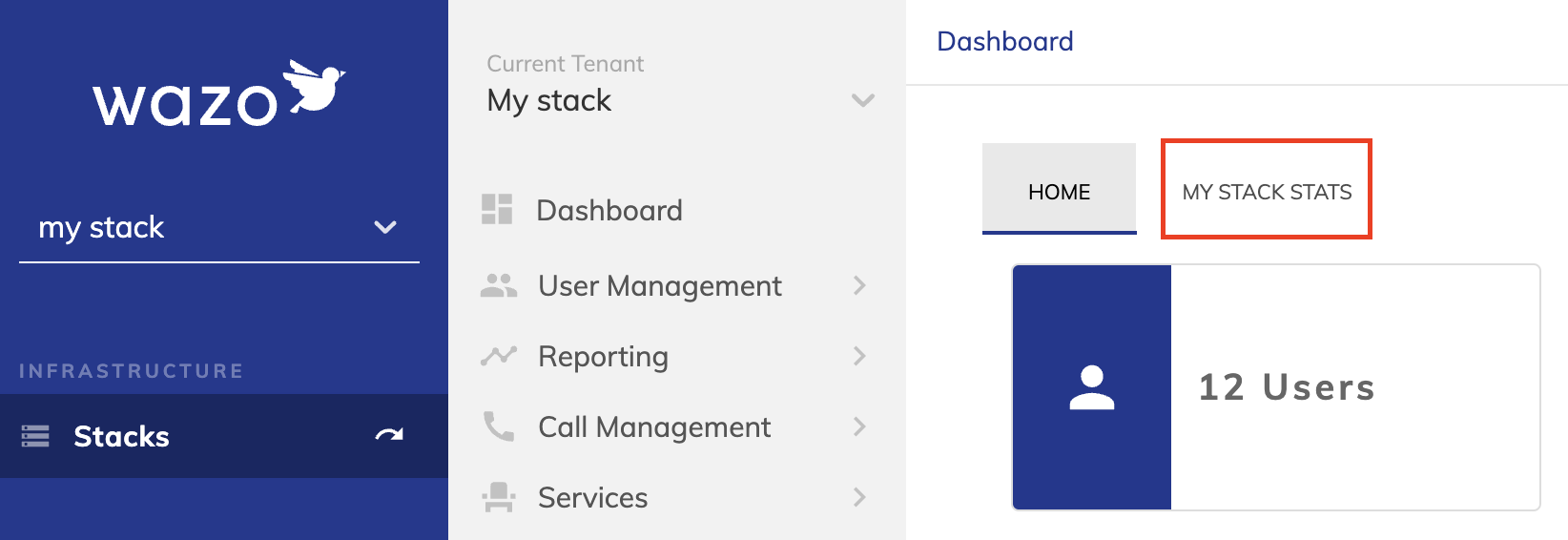
To create a new tab in the PBX main screen, add a staticTabs in your manifest with a generalPbxTab context :
"staticTabs": [
  {
    "entityId": "my id",
    "context": [
      "generalPbxTab"
    ],
    "name": "My label",
    "contentUrl": "./content.html"
  }
],
When the user clicks on the tab, the contentUrl will be loaded.
Tabs - Add a link to an existing menu
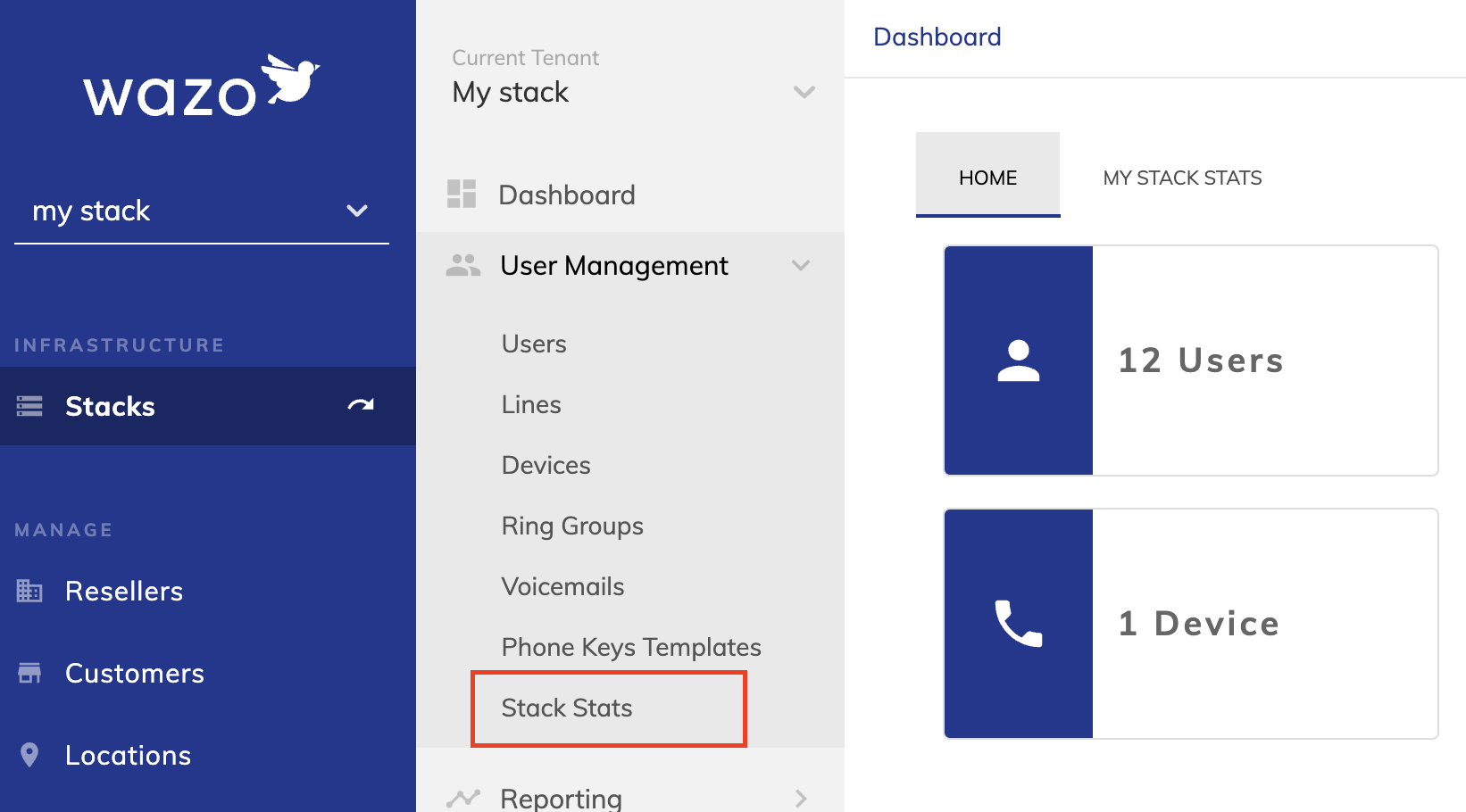
To create a new page the PBX menu, add a staticTabs in your manifest with a pbxMenu context :
"staticTabs": [
  {
    "entityId": "my id",
    "context": [
      "pbxMenu"
    ],
    "name": "My label",
    "parent": "common.layout.pbxMenu.userManagement",
    "contentUrl": "./content.html"
  }
],
The parent key can be one of common.layout.pbxMenu.* where * is : globalSettings, userManagement, callManagement, services, callCenter,reporting, soundsAndGreetings, settings.
When the user clicks on the tab, the contentUrl will be loaded.
Tabs - Add a new menu
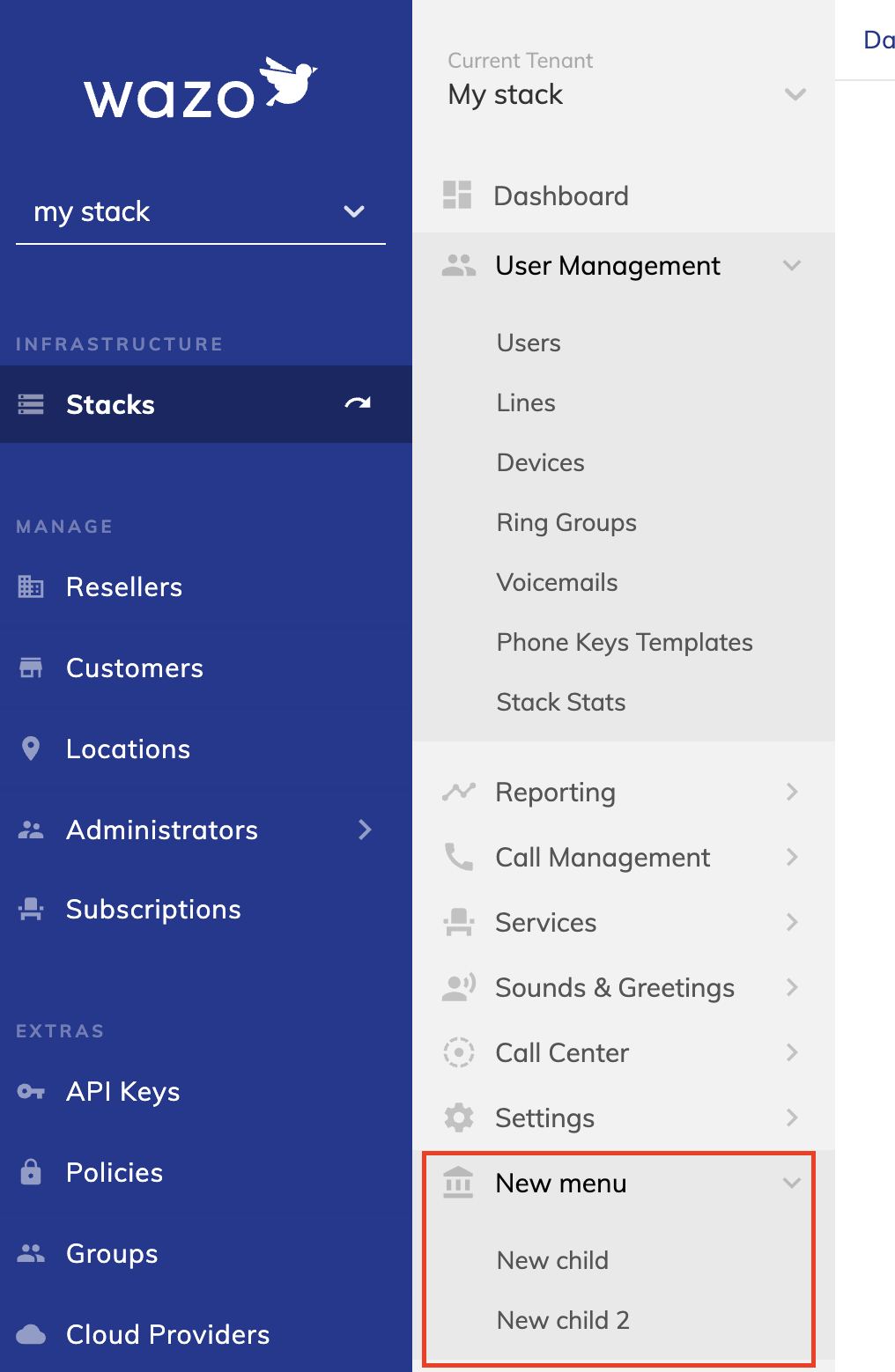
To create a new menu in the PBX section, add a staticTabs in your manifest with a pbxMenu context :
"staticTabs": [
  {
    "entityId": "custom-child",
    "context": [
      "pbxMenu"
    ],
    "name": "New child",
    "parent": "New menu",
    "parentIcon": "AccountBalance",
    "contentUrl": "http://example.com/stats-stack.html"
  },
  {
    "entityId": "custom-child2",
    "context": [
      "pbxMenu"
    ],
    "name": "New child 2",
    "parent": "New menu",
    "parentIcon": "AccountBalance",
    "contentUrl": "http://example.com/stats-stack.html"
  },
],
When the user clicks on the tab, the contentUrl will be loaded.
Tabs - Add link to Global Settings
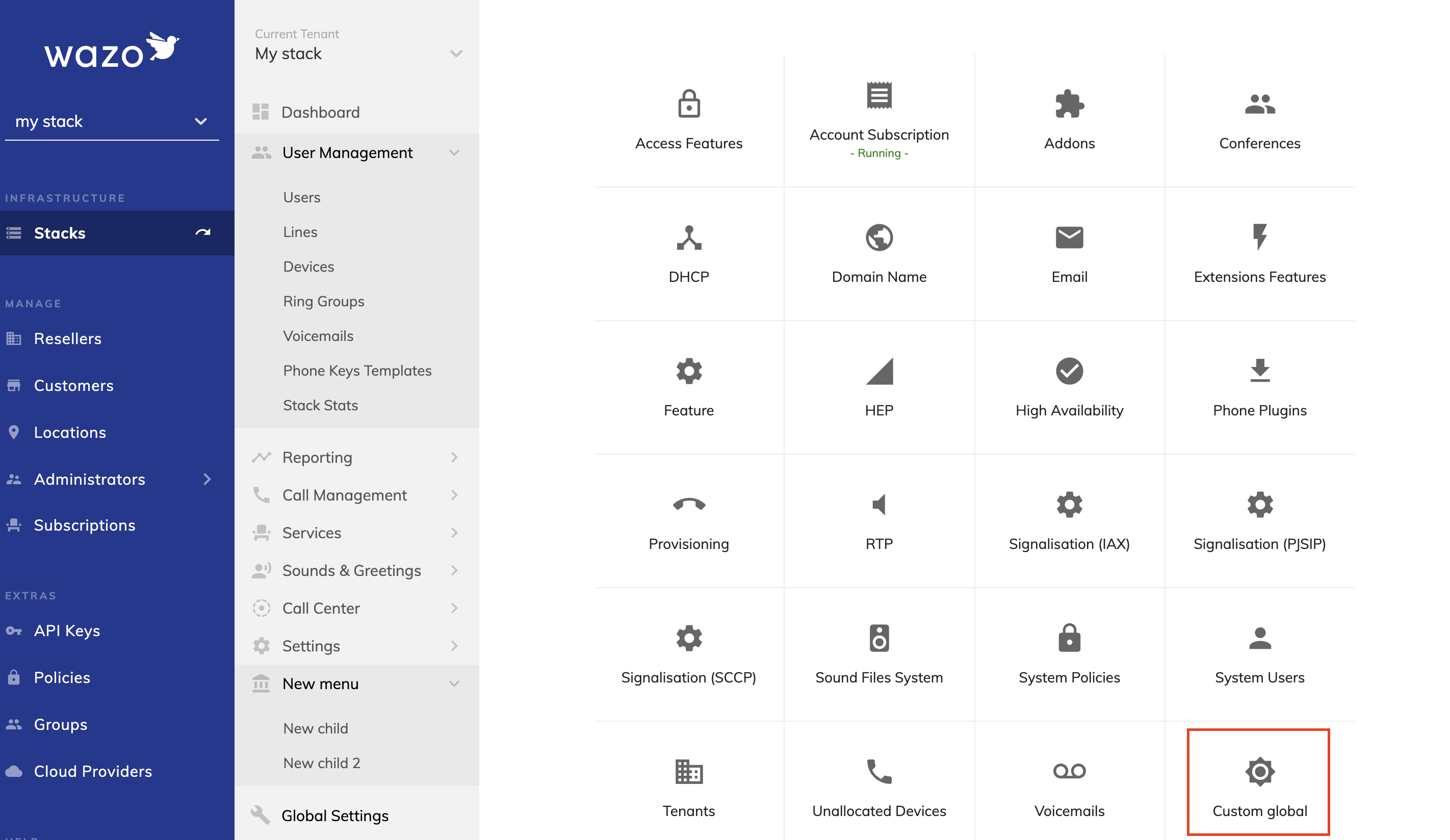
To create a new menu in the PBX section, add a staticTabs in your manifest with a globalSettings context :
"staticTabs": [
  {
    "entityId": "global-settings",
    "context": [
      "globalSettings"
    ],
    "name": "Custom global",
    "icon": "BrightnessHigh",
    "contentUrl": "http://localhost:3002/portal/global.html"
  }
],
When the user clicks on the tab, the contentUrl will be loaded.
Tabs - Extend an existing form
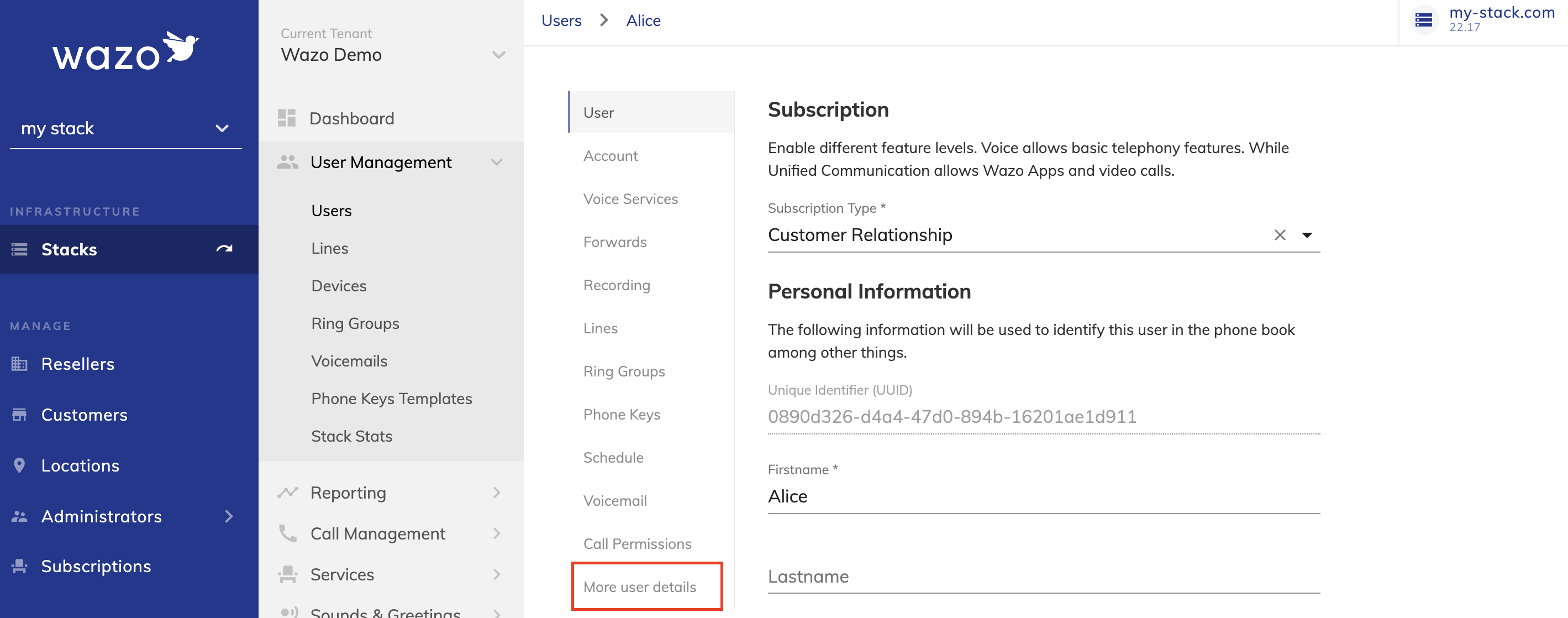
To create a new tab in the PBX main screen, add a staticTabs in your manifest with a pbx.* context :
"staticTabs": [
  {
    "entityId": "my id",
    "context": [
      "pbx.users"
    ],
    "name": "My label",
    "contentUrl": "./content.html"
  }
],
The context key can be one of pbx.* where * is : users, lines, devices, ring-groups, voicemails, ...
When the user clicks on the tab, the contentUrl will be loaded.
Menu Item - Open in a new browser tab
Sometimes we may want to open a link in a new tab. To change the behavior of the static tab, add "isExternal": true to the staticTab definition.
"staticTabs": [
  {
    "entityId": "support-tab",
    "context": [
      "pbxMenu",
      "globalSettings"
    ],
    "name": "Support",
    "contentUrl": "https://support.wazo.io/",
    "icon": "./assets/icon.svg",
    "isExternal": true,
  }
],
isExternal will work only with a staticTab of type: "pbxMenu" and "globalSettings"
Menu Item - Supported Icons
To defined icon and parentIcon image, we support two types of values:
-
Path to a black
.svgicon (recommended) -
Using a supported Material UI icon
List of supported icons
AccessibilityAccountBalanceAccountBoxAccountCircleAddAddCircleOutlineAddIcCallOutlinedAndroidSharpAppsAppSettingsAltArrowBackArrowDownwardArrowDropDownArrowForwardArrowForwardIosArrowUpwardBlockBoltBrightnessHighBugReportBuildBusinessBusinessOutlinedCakeOutlinedCalendarMonthCallCallEndCallMergeCancelCancelOutlinedCheckCheckCircleCheckCircleOutlineCheckCircleOutlinedChevronLeftChevronRightClearCloseCloudCloudDownloadDashboardDateRangeDateRangeOutlinedDeleteDeleteOutlineDescriptionDesktopMacDesktopWindowsOutlinedDeviceHubDialerSipDialpadDirectionsCarDoneDoneAllDoneOutlinedDragHandleEditEmailEmailOutlinedEqualizerErrorErrorOutlineEventSeatExitToAppExpandLessExpandMoreExtensionFileCopyOutlinedFilterListFilterTiltShiftFlagFlashOnFolderSharedFormatListBulletedGetAppGroupGroupOutlinedHeadsetMicHelpHelpOutlineHistoryInfoInfoOutlinedInsertChartInsertDriveFileKeyKeyboardArrowLeftKeyboardArrowRightKeyboardReturnLaptopLaunchLibraryBooksLibraryMusicListLocationOnLocationOnOutlinedLockLockOutlinedMenuMonitorHeartMoreHorizMoreVertMusicNoteNavigateNextNoteOutlinedNotificationsNoneOpenInNewPeoplePermDataSettingPersonPersonOutlinedPhonePhoneForwardedPhoneOutlinedPieChartPlayArrowPlaylistAddPublicPublishQueryBuilderReceiptReceiptOutlinedRecordVoiceOverRedoRefreshRemoveRestoreRingVolumeRoomServiceScheduleScheduleOutlinedSearchSendSettingsSettingsApplicationsSettingsBackupRestoreSettingsPhoneShuffleSignalCellular4BarSmartphoneSmartphoneOutlinedSmsSpeakerStarStopStorageStoreMallDirectorySupervisorAccountSwapCallsSyncTimelineTocTodayTransformTrendingFlatTroubleshootTtyOutlinedTuneUpdateVerifiedUserViewListVisibilityVisibilityOffVoicemailVolumeDownVolumeMuteVolumeUpVpnKeyVpnLockWarningWebWebAsset
Context - Plugin Extra Payload
Portal plugins receive extra context via app.getContext().app.extra once app.initialize() resolves. You can use it to call portal/stack APIs or render administrator-specific UI without making extra round trips.
await app.initialize();
const { extra } = app.getContext().app;
| Field | Description |
|---|---|
extra.clientType | Always 'portal' for Portal plugins. |
extra.portal.host | Hostname of the portal API (nestbox), e.g. 127.0.0.1:8842. Use it to call portal endpoints like https://${host}/api/confd/1.0/resellers. |
extra.portal.tenant | UUID of the currently-selected portal tenant (matches localStorage.currentTenantUuid / the toolbar AccountSwitcher). |
extra.administrator.uuid | UUID of the connected administrator. |
extra.administrator.username | Username of the connected administrator. |
extra.administrator.organization.resource | Account type: resellers, customers or locations. |
extra.administrator.organization.is_partner | true when the account is a partner. |
extra.administrator.organization.uuid / .name | UUID and name of the administrator's organization. |
extra.stack.host / extra.stack.port | Hostname and port of the connected stack. Use it to call stack endpoints like https://${host}:${port}/api/auth/0.1/tenants. |
extra.stack.session.token | Auth token for the connected stack. |
extra.stack.currentTenant | UUID of the currently-selected stack tenant. |
extra.stack.wazoUuid / extra.stack.version | Stack identification and engine version. |
extra.stack is only populated when the plugin tab is mounted in a pbxMenu context (i.e. after the user has connected to a stack).
Security - Administrator role
Sometimes, you may want to prevent an administrator from modifying sensitive information on a plugin page. From context, you can retrieve the current user's account type and then handle the right logic.
await app.initialize();
const context = app.getContext();

const accountType = context.extra.administrator.organization.resource;
switch (accountType) {
  case: 'resellers':
    return true;

  case: 'customers':
  case: 'locations':
  default:
    return false;
}
Background Script
You can add custom code when the user is not using a custom tab. It can be useful to handle custom events.
{
  // ...
  "backgroundScript": "./background.js"
}
Please refer to the SDK documentation to know how to inject custom code in the application.
The background script is always running, even when the user is logged out. Please make sure to remove all related background tasks when the onLogout listener event is fired.